For: School owner, Proprietor, Proprietress
School owner
Setting the school up, giving staff their accounts, paying for OS for Schools and seeing how the school is doing — for the proprietor or proprietress.
Your home screen
Your Dashboard opens with Needs your attention: the decisions waiting for you and the things that are late — leave requests, applications, overdue fees, a tax payment due, a licence the school has not recorded. Press Review, Follow up or Add beside one to go straight to it.
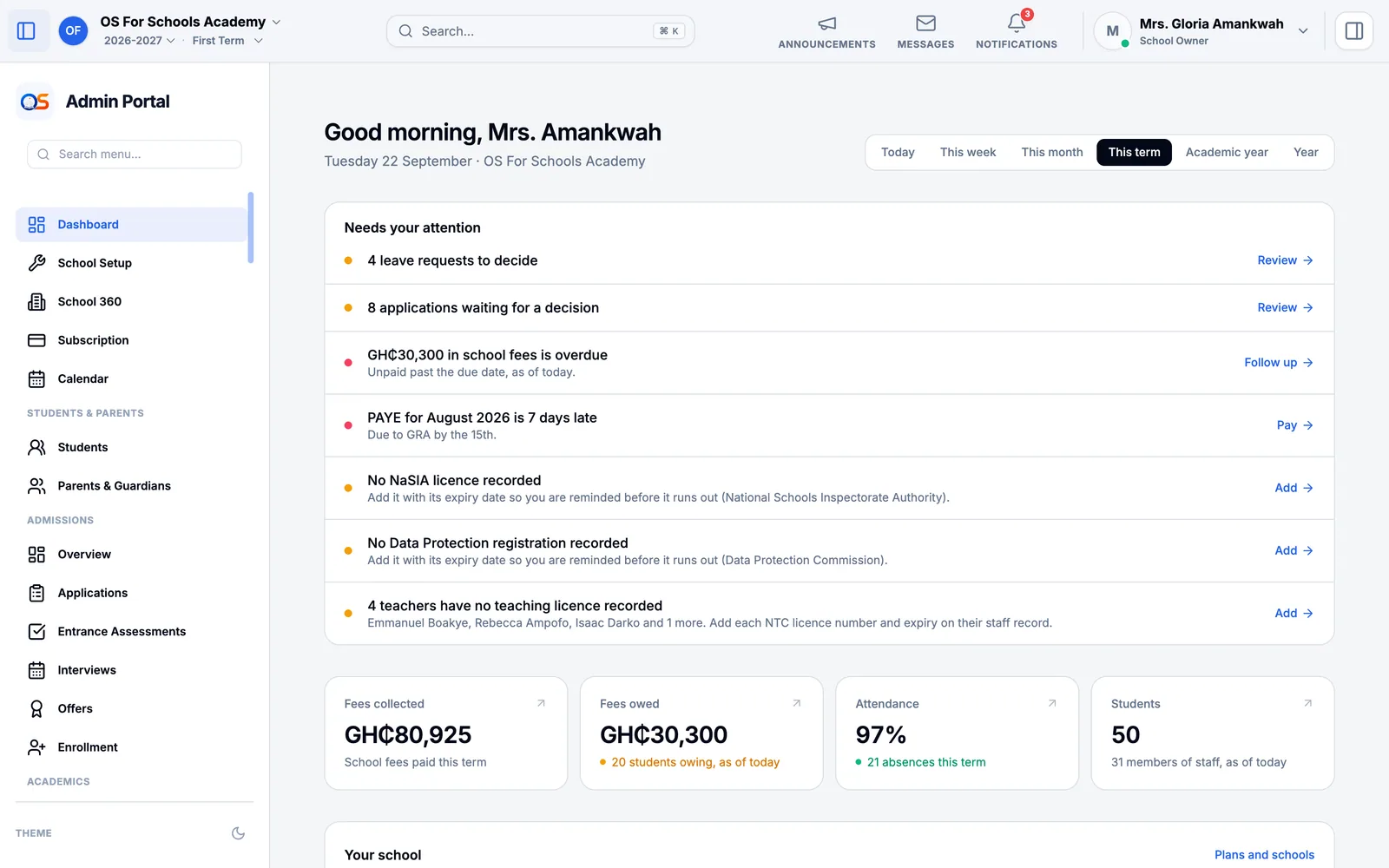
Below it are the school’s figures — fees collected and owed, attendance, students and staff. Choose Today, This week, This month, This term or Academic year at the top to change the period. Press a figure to see what is behind it.
Set up your school
School Setup lists everything a school needs before it starts using OS for Schools, and what is already done. Its progress is worked out from what the school has actually entered, so a task is only ticked off when it is really finished.
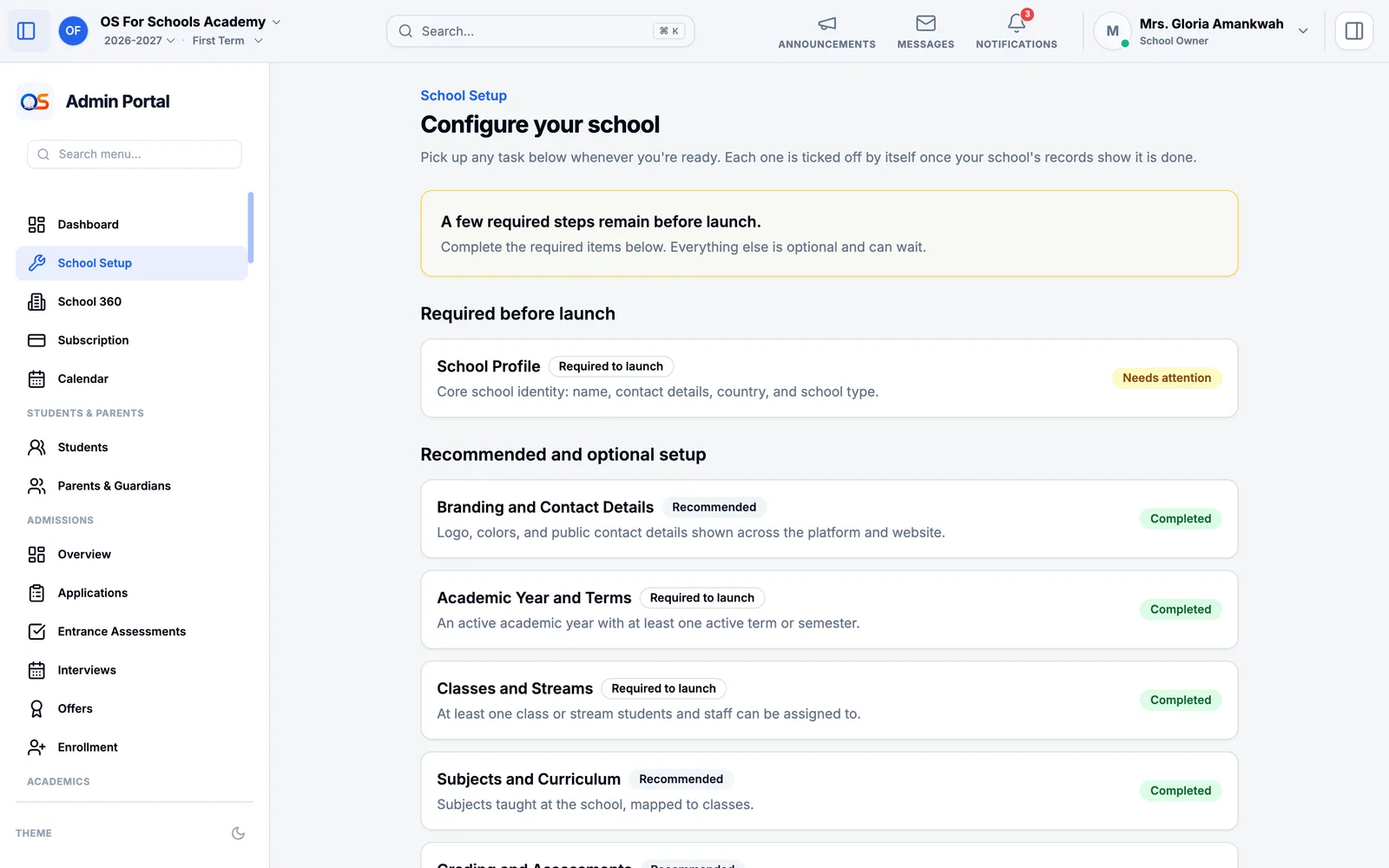
- Required before launch: the school’s profile, the academic year with its terms, and at least one class.
- Recommended: your logo and colours, subjects, fees, staff and pupils. Do them whenever you are ready — nothing here can be skipped by mistake.
Give your staff their accounts
Everyone signs in with their own account, and each account has a job — teacher, bursar, cashier, librarian and so on. The job decides what the person sees: a teacher never sees the school’s bank accounts, and a cashier never sees report cards.
Open Human Resources, then Staff, and press Add Employee. Fill in the person’s details.
Tick Grant portal access now and choose their job under Portal role. They are sent an email with a temporary password, which they change the first time they sign in.
For someone with no email address, save their details first. Then open their profile and press Generate Activation Code: give them the code, and they set up their own sign-in with their phone number.
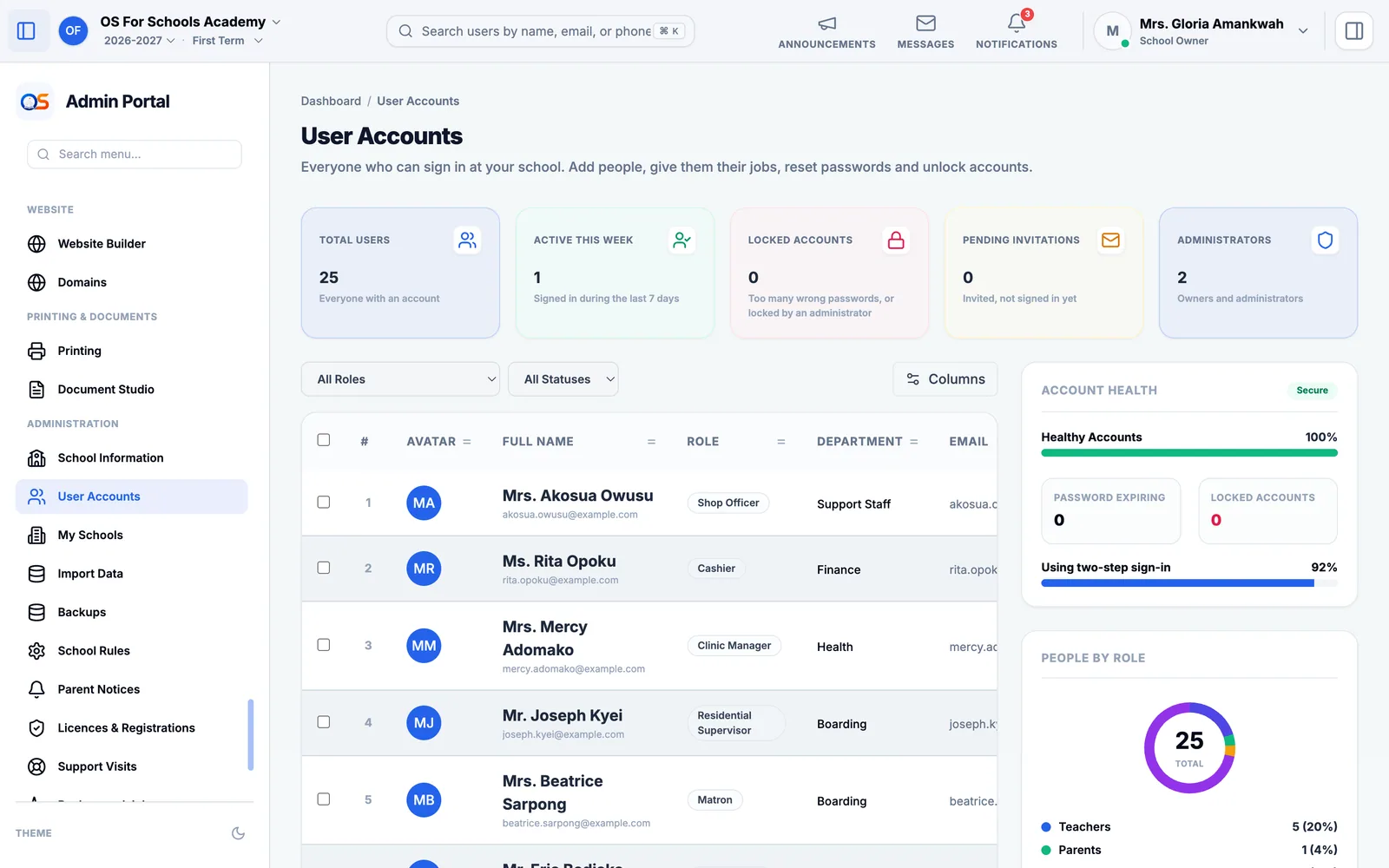
Administrator and officer jobs — the headteacher, the bursar, the cashier, the IT administrator — are given in Administration, then User Accounts. That page lists everyone who can sign in: press a person to change their job, reset their password or unlock their account.
Pay for OS for Schools
Subscription shows your plan, when it renews, what the school owes and every payment it has made, with receipts you can download.
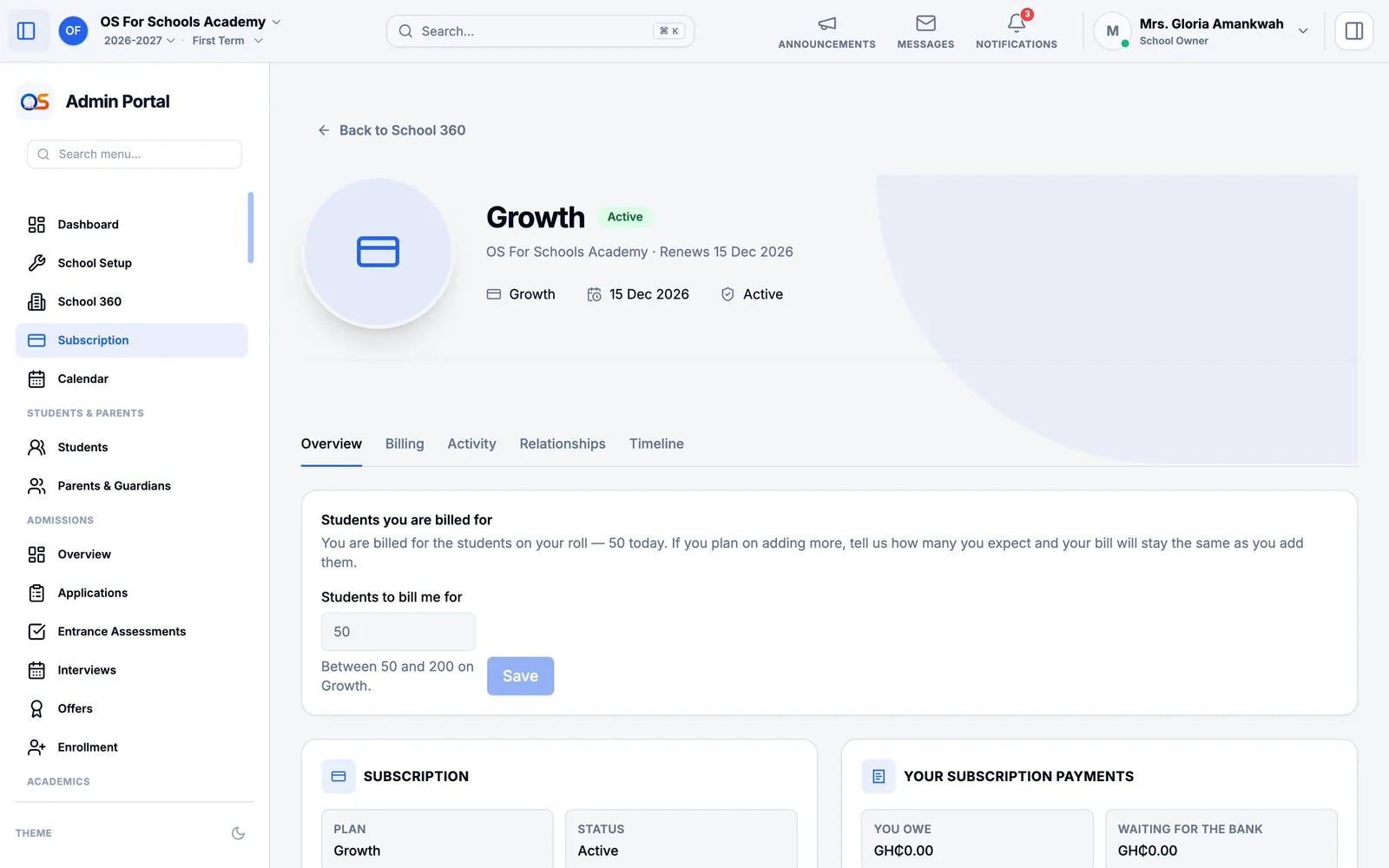
When a renewal falls due, a notice appears at the top of every page with a Pay now button. The owner, the bursar and the cashier can all pay.
Press Pay now and pay by card or Mobile Money. You come back to Subscription, which says whether the payment went through.
Your receipt is under Billing on the Subscription page.
You are billed for the students on your roll. If you expect more during the term, put that number in Students you are billed for: your bill then stays the same as they join.
See how the school is doing
School Performance (under Academics) puts the term on one page: average score, pupils at or above the pass mark, attendance, fees collected, pupils per teacher and more. Each figure says whether it is good, satisfactory or needs attention, what "good" means, and What this means explains it in plain words.
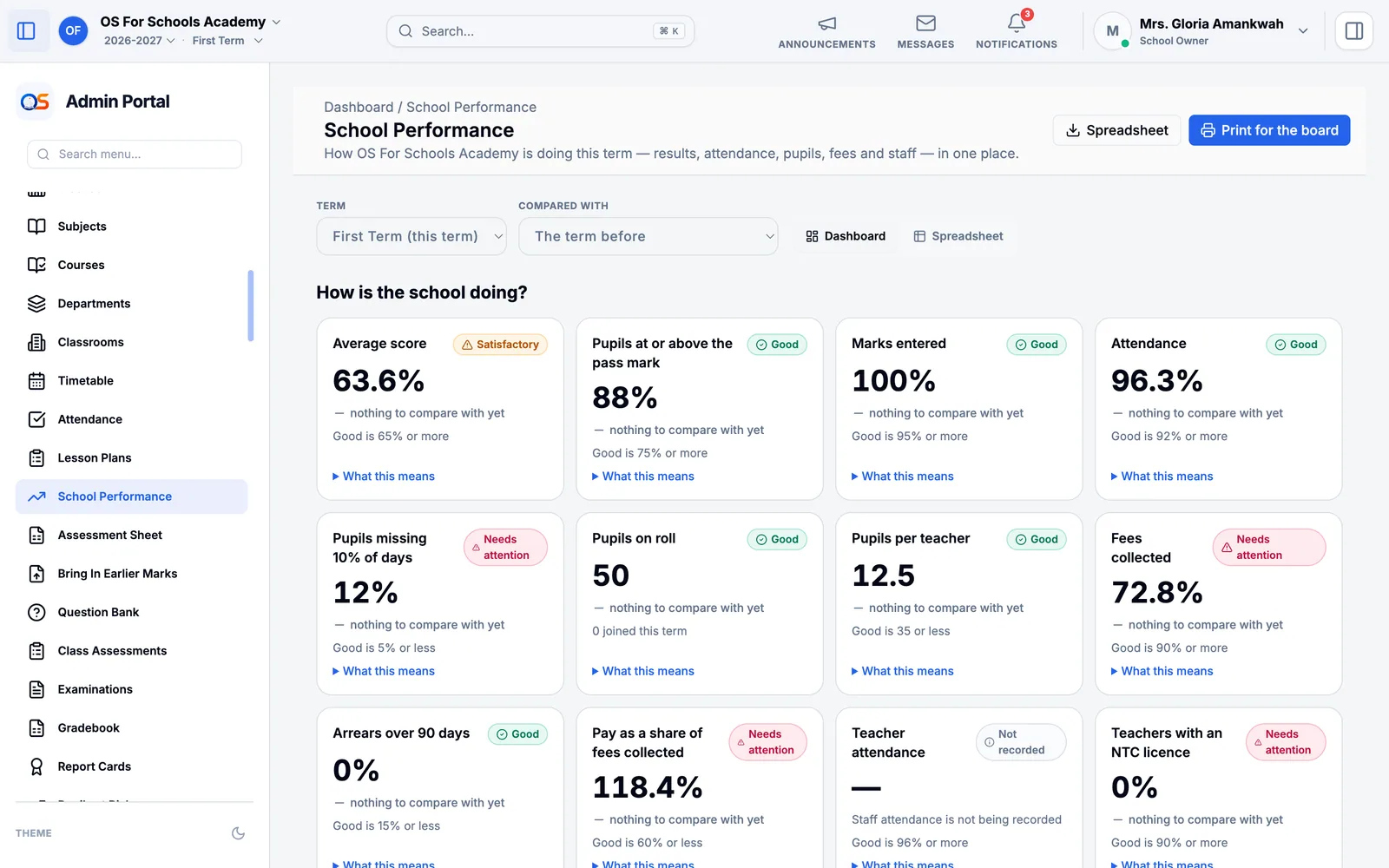
Choose another term, or compare with the term before. Print for the board gives a one-page summary for the board or the PTA; Spreadsheet gives the same figures to work with in Excel.
Money in and out
Finance shows every fee billed and paid, the cash office, money spent and the school’s reports. The day-to-day work is the bursar’s and the cashier’s — their guides explain it step by step. As owner you see all of it, and spending waits for you: when the bursar records money going out, it appears under Disbursements for you, the principal or the headteacher to approve before it is paid.
SMS and your school’s website
- SMS Credits
- Buy SMS credits for fee reminders, absence alerts and notices to parents, and choose the name your messages come from.
- Website Builder
- Your school’s public website: choose a template, add your details, photos and news, then press Publish Website.
- Licences & Registrations
- Your NaSIA licence, Data Protection registration and other licences, with their expiry dates, so you are reminded before they run out.
When OS for Schools helps you
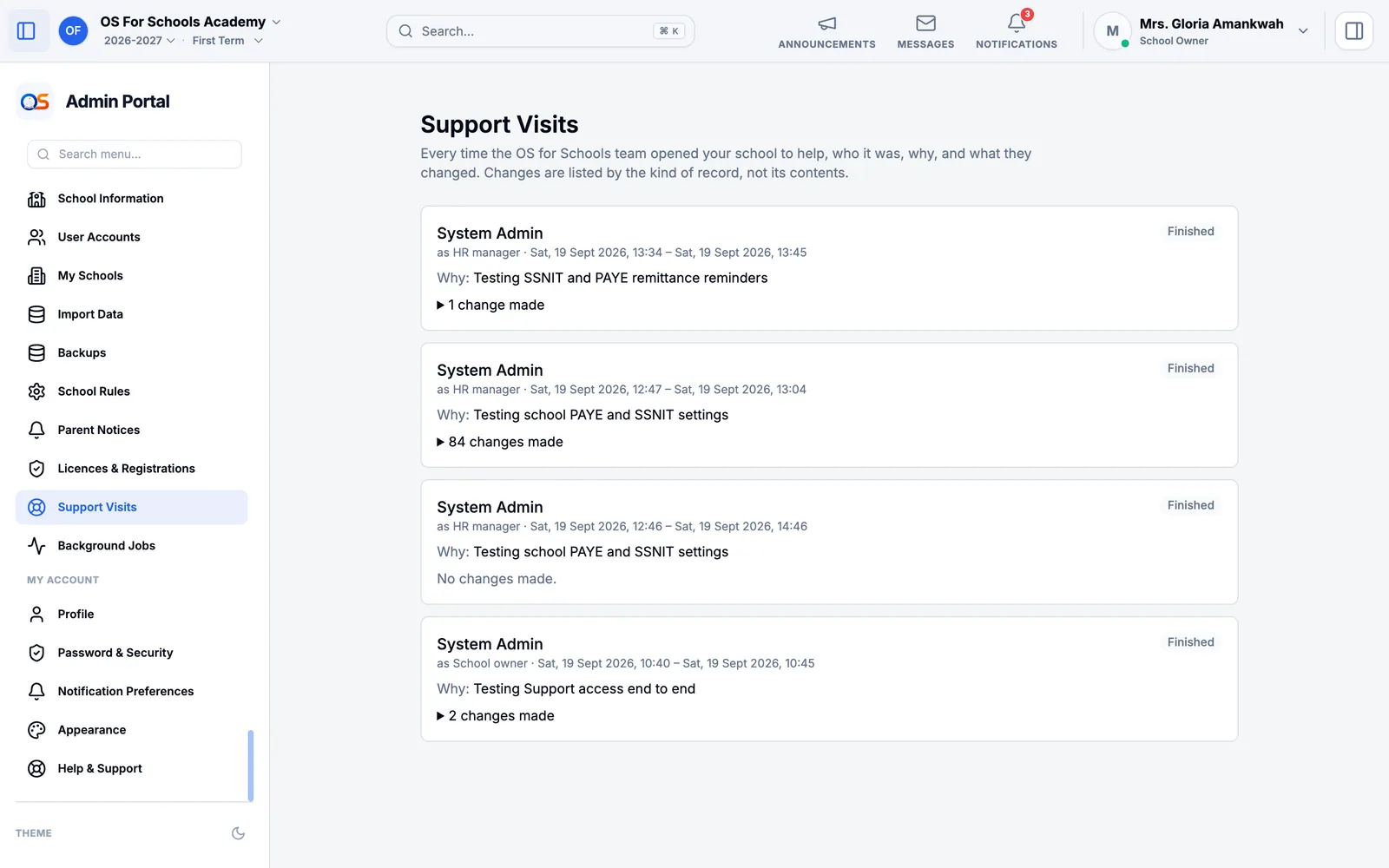
Sometimes the OS for Schools team opens your school to help — to answer a question or fix something with you. Support Visits (under Administration) lists every visit: who it was, when, why, and what they changed. Nothing is hidden from you.